

How to Improve Your Google Business Profile for Local SEO
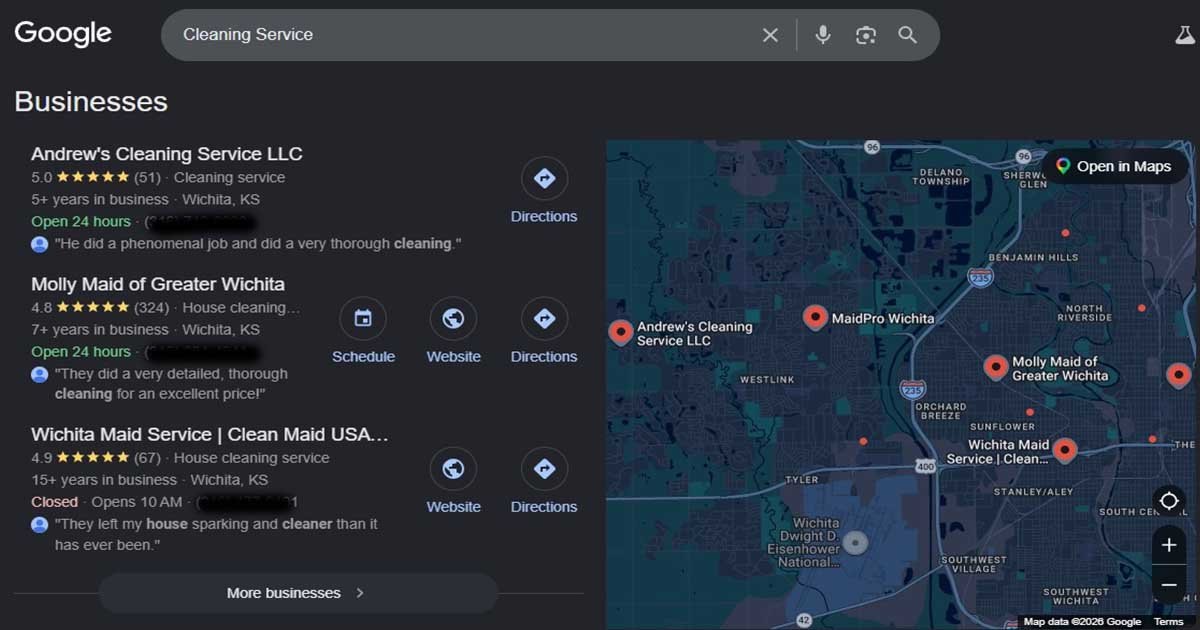
Search for “cleaning service” on your phone right now. Before you see a single website, Google shows you a map and three local businesses, complete with star ratings, phone numbers and opening hours. For most people, that’s where the search ends. They pick one of those three and call.
That box is called the Local Pack, sometimes the “3-Pack,” and getting into it is the main goal of local SEO. The single most important tool for getting there is your Google Business Profile. In this guide I’ll walk you through setting one up properly, understanding the dashboard, and managing reviews the right way.
What is local SEO, and why does it matter?
Put simply, local SEO means being found by people near you. Type “plumber” into Google and you won’t get plumbers from three states away. You’ll get the ones down the road, because Google figures you need someone who can actually show up. Where you’re standing when you search changes what you see.
The good news for small businesses is that you’re not competing with the whole world. A cleaning company in a small Kansas town is only up against other cleaners in that area. That makes local SEO much more achievable than ranking nationally, and it usually brings results faster and for less money.
Why your Google Business Profile comes first
Your Google Business Profile (GBP) is what appears in the Local Pack and on Google Maps. It shows your business name, location, reviews, phone number, hours and whether you’re open right now. Without a verified profile, you simply can’t appear in those results, no matter how good your website is.
So the first job is to create it, verify it and fill it out completely.
Before you start: gather your information
The setup goes much more smoothly if you have everything ready. Here’s an example for a sample business:
– Business name: CrystalCare Cleaning Services
– Opening date: January 1, 2026
– Business hours: Monday to Saturday, 9:00 AM – 6:00 PM, Sunday closed
– Phone: (316) 555-0142
– Address: 1234 Prairie View Drive, Cheney, KS 67025, United States
– Logo
– A short video of your office, team or equipment (useful for verification)
– A photo of your storefront or office, with signage visible if you have it
– A few photos of your team and your work
– A short business description
One important rule before we start: enter your business name exactly as it appears in real life. If your business is called “CrystalCare Cleaning Services,” don’t write “CrystalCare – Best House Cleaning in Cheney.” Adding keywords to your name breaks Google’s guidelines and is one of the most common reasons profiles get suspended.
Creating your profile step by step
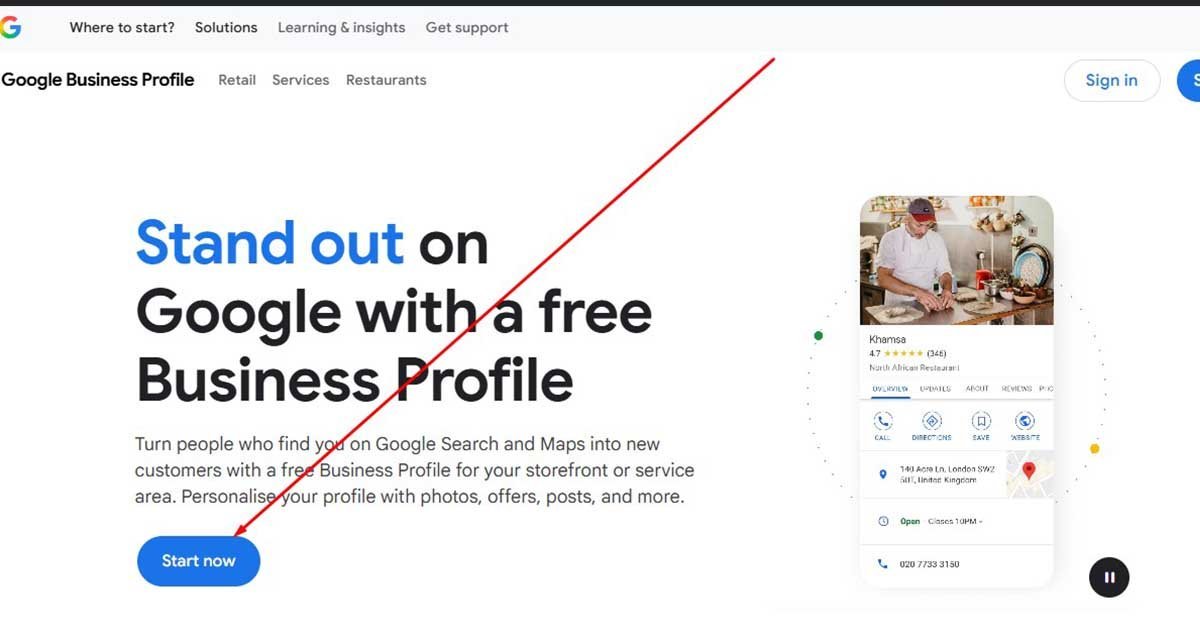
Step 1: Go to business.google.com and sign in
Quick tip before you click business.google.com: think about which Google account you’re using. It happens more often than you’d think: an owner sets up the profile on a personal Gmail, or on an account a relative made for them years ago, and later can’t get back in. Use an account you control and plan to keep, preferably linked to your business email.
Step 2: Enter your business name
Type your real business name. If Google suggests an existing listing that matches, claim it instead of creating a new one.
Step 3: Choose your business type
Google asks how you serve customers. You can choose more than one:
– Online retail: customers buy through your website
– Local store: customers visit you in person
– Service business: you go to your customers
CrystalCare cleans people’s homes, so it would choose “Service business.”
Step 4: Pick your category
Don’t rush this one. Your primary category tells Google what searches you should show up for, and getting it wrong can quietly hold you back for months. CrystalCare would go with “House cleaning service.” If they also clean offices, “Commercial cleaning service” can go in as a secondary category later. Just don’t add categories for things you don’t really do.
Step 5: Add your service areas
List the towns, cities or zip codes you serve. Because CrystalCare visits customers rather than having them come in, its home address should stay hidden, and Google will show its service area instead.
Step 6: Add your contact details
Enter your phone number and website. Google may also offer to let customers message you. It’s worth turning this on, as long as you’ll reply quickly.
Step 7: Verify your business
Google will ask you to confirm the business is real. These days that’s often done by recording a short video showing your signage, your workspace, your equipment or your branded vehicle. Sometimes it’s by phone, email or postcard. You can also choose to verify later, but your profile won’t be visible until you do.
Step 8: Add your services, hours and description
List the specific services you offer (standard cleaning, deep cleaning, move-out cleaning and so on), set your hours and write a clear, honest description of your business.
Step 9: Add photos
Upload your logo, a storefront or office photo and a few pictures of your team and your work. Real photos build far more trust than stock images.
Step 10: Skip the extras for now
Google will likely offer paid ads and a custom email address. You can skip both and come back to them later if you want.
Once you finish, you’ll see a note saying your profile isn’t visible to customers yet. That’s normal. It will go live once verification is complete, and you can edit everything after that.
A quick note on geo-tagging photos
You’ll often hear that adding GPS data (geo-tags) to your photos will boost your rankings. I’d keep expectations low here. Google removes most of the embedded location data when you upload a photo to your Business Profile, and there’s little solid evidence that geo-tags affect rankings.
What does make a difference is uploading real, good-quality photos of your business regularly. That’s where I’d put your energy. (If you want to geo-tag anyway, for proof of work or organizing your files, our guide to geo-tag images walks you through it.)
Getting to know your dashboard
Once you’re verified, you can manage everything from your profile dashboard. Here’s what the main sections do:
– Edit profile: update your name, categories, hours, services, description and contact details. This is where you add secondary categories.
– Reviews: read customer reviews and reply to them.
– Messages: turn on messaging so customers can contact you directly from Google.
– Add photos and videos: upload your logo, cover photo, team photos and work photos. Videos can be up to 30 seconds long and up to 75 MB.
– Performance: see how many people viewed your profile, called you, asked for directions or visited your website.
– Products and services: add or update what you sell.
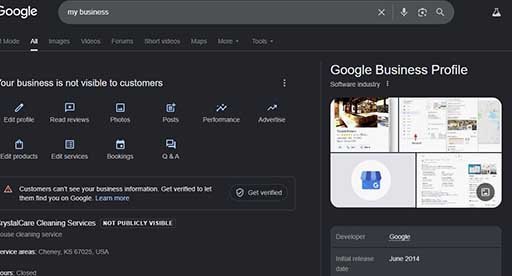
Spending ten minutes a week in here, updating photos, replying to reviews and checking your performance, is one of the easiest ways to keep your profile strong.
Managing your Google reviews
Reviews are one of the biggest factors in whether someone chooses you. Most people look at your star rating and read a few reviews before they call. A strong review section tells them you’re reliable. A neglected one, or one full of unanswered complaints, sends them to a competitor.
When someone leaves a review, Google sends a notification to your email. Try to reply within a day or two.
For positive reviews, thank the customer and, where it fits naturally, mention the service they used. For example: “Thanks, Sarah! We’re so glad the move-out deep clean went smoothly.” It’s personal, and it reads naturally to future customers. Don’t stuff your replies with keywords, though. They’re for people, not for Google.
How to get more positive reviews
The simplest method works best: ask. After finishing a job, send your customer a short text or email with a direct link to your review page (you’ll find the link in your dashboard). Most happy customers are glad to help. They just need a reminder.
You can also add a review link to your website, your email signature and your invoices.
Now, a lot of businesses get this next part wrong, and some older guides even recommend it. Don’t give people a discount, a coupon or a free anything for leaving a review. Google treats that as a policy violation. You could lose those reviews, or end up with a restriction on your profile. Buying reviews is even worse. Tempting as it may be when you’re just starting out, it’s not worth it.
One exception worth knowing: Yelp doesn’t allow businesses to ask for reviews at all, so this advice applies to Google, not Yelp.
How to handle negative reviews
Every business gets a bad review sooner or later. What matters is how you respond.
Reply calmly and professionally. Acknowledge the customer’s experience, apologize where it’s appropriate and offer to make it right, ideally by inviting them to contact you directly. Don’t argue in public. Remember that you’re really writing for every future customer who reads your reply.
If a review is fake, spammy or clearly breaks Google’s policies, you can report it from your dashboard. Google will review it and may remove it. But you can’t delete a review just because you don’t like it.
Over time, the best way to soften the impact of a negative review is to keep earning genuine positive ones from satisfied customers. One bad review among dozens of good ones barely registers.
And if the same complaint keeps coming up? That’s not a review problem, it’s a service problem. Fix the cause, and your reviews will follow.
The bottom line
A well-built Google Business Profile is the foundation of local SEO. Set it up with accurate information, choose the right category, add real photos, keep it updated and treat reviews as an ongoing conversation with your customers. Do that consistently, and you’ll give yourself the best possible chance of landing in the Local Pack.
Once it’s live, back it up with consistent listings on the right business citation sites.
Want help optimizing your Google Business Profile for local SEO? Get in touch with our team.