

Geo Tag Images: Image Geo-Tagging, Sizes and Mobile Photography Guidelines
Photos are one of the most underrated parts of local SEO. When someone searches “restaurants near me” and your Google Business Profile pops up, your photos are often what makes them tap on you instead of the place next door.
Geo-tagging gets talked about a lot in this space, so in this guide I’ll cover three things: the right image sizes for Google Business Profile, how to geo-tag images on your phone and computer, and, just as important, what geo-tagging can and can’t actually do for your rankings.
First, an honest word about geo-tagging
You’ll see plenty of blogs claim that adding GPS data to your photos will push you to the top of Google Maps. I’d be careful with that.
One recent study did find a small lift for ‘near me’ searches, but city-name searches dropped at the same time, so the overall picture is mixed at best.
When you upload a photo to your Google Business Profile, Google strips out most of the embedded metadata, including the GPS coordinates. Several SEO testers have looked at this over the years, and the evidence that geo-tags on GBP photos improve rankings is weak at best.
So why bother? A few reasons. Geo-tagged originals are useful proof of work for clients and a tidy way to organize photos by location. They don’t hurt anything. And the habits that come with a good geo-tagging workflow (taking real photos on-site, naming files properly, uploading consistently) genuinely do help your profile.
What really moves the needle is this: real, good-quality photos of your business, uploaded regularly. That’s where most of your effort should go.
Part 1: The right image sizes for Google Business Profile
Google’s official requirements are fairly simple. Photos should be JPG or PNG, between 10 KB and 5 MB, and at least 250 × 250 pixels. Google recommends 720 × 720 pixels as a good all-round size.
Beyond that, these sizes work well in practice:
– Logo: 720 × 720 pixels (square, 1:1)
– Cover photo: 1024 × 576 pixels (landscape, 16:9). Keep the main subject in the center, since the edges may be cropped on mobile.
– Posts and product images: 1200 × 900 pixels (4:3). A good size for new menu items, offers and updates.
– General photos (food, interior, team, exterior): 720 × 720 pixels or larger. Safe and sharp on every device.
If your images are the wrong size, Google may crop them awkwardly or they may look blurry, so it’s worth resizing before you upload.
Part 2: How to geo-tag photos on your phone
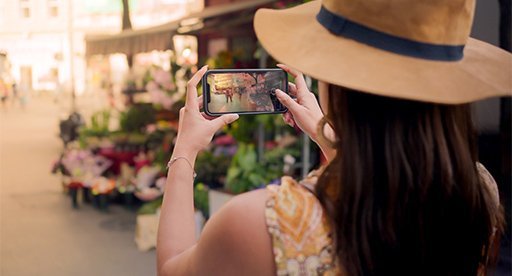
The easiest way to create geo-tagged images is to add the location while you take the photo. No editing needed afterward.
Method 1: Your phone’s built-in camera
Both Android and iPhone can save location data automatically.
On iPhone, go to Settings > Privacy & Security > Location Services > Camera, and choose “While Using the App.”
On Android, open your camera app, tap the settings (gear) icon, and turn on “Location tags” or “Save location.” The exact wording varies by phone brand. Make sure your phone’s main Location setting is also switched on.
That’s it. Now every photo you take at your restaurant, shop or job site will store the latitude and longitude in the image file.
Method 2: A GPS camera app
If you want the location to appear visibly on the photo as well, try an app like GPS Map Camera, which is free on both Android and iOS. It stamps the address, coordinates and a small map onto the image and saves the location in the file’s metadata.
This is especially handy for service businesses. A roofer or flooring contractor can use these photos as clear proof of completed jobs for clients. I’d just keep the stamped versions for reports and your website, and upload clean versions to your Google profile, since big overlays make photos look less natural.
Part 3: How to geo-tag images on a computer with GeoImgr
What about photos taken on a digital camera, or on a phone with location turned off? You can add a geo-tag afterward using a free browser tool called GeoImgr (tool.geoimgr.com).
Step 1: Upload your image
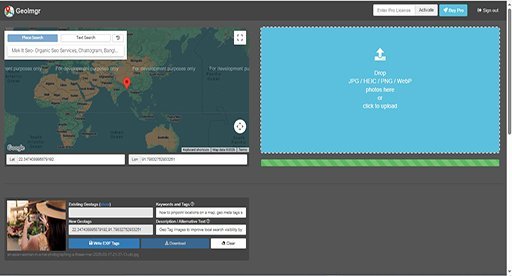
Open GeoImgr and drag your photo into the upload box.
Step 2: Set the location
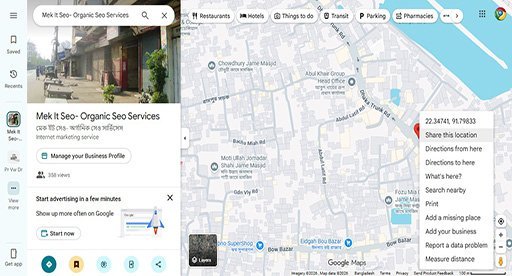
Type your business name or address into the map search. Then drag the red marker so it sits right on your building. The new coordinates will appear in the “New Geotags” section. You can ignore the “Existing Geotags” box.
Step 3: Add keywords
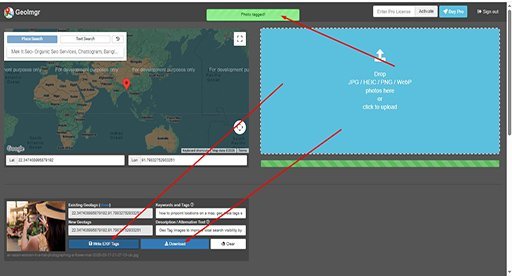
In the “Keywords and Tags” box, add a few relevant terms separated by commas, such as your business type and area, for example: Italian restaurant, Downtown Portland. Keep it natural. There’s no need to force phrases like “near me” into your photo data.
Step 4: Write a description
Add a short, one or two line description of what’s in the photo, such as “Wood-fired margherita pizza at Luigi’s Kitchen, Downtown Portland.”
Step 5: Save your image
Click “Write EXIF Tags,” then “Download” to save the updated photo.
A quick note on older software: desktop tools like GeoSetter used to be popular for this, but they’re no longer actively maintained and the built-in map often doesn’t work on modern computers. A browser tool like GeoImgr, or simply your phone’s camera, is much less hassle.
Part 4: Photo tips that actually help your local SEO
Use real photos. This is the big one. Google’s guidelines say photos should represent your actual business, so skip stock images and heavily filtered pictures. Show your storefront, your interior, your team, your products and your finished work. Customers trust real photos far more, too.
Name your files sensibly. Before uploading, rename files from something like IMG_4829.jpg to something descriptive, like margherita-pizza-luigis-kitchen.jpg. It won’t transform your rankings, but it’s a good habit, especially for images on your website.
Go easy on text. Photos with big phone numbers or “50% OFF” banners across them look like ads, not like your business. Keep text and logos small, or leave them out entirely. Save offers for Google Posts instead.
Upload consistently. A profile that gets fresh photos regularly looks active and well-cared-for. Two or three new photos a week is a great rhythm for most businesses. Once a week is fine too. The key is to keep going.
Show what customers care about. For a restaurant, that’s the food, the dining room and the outside so people can find you. For a service business, it’s before-and-after shots, your team at work and your vehicles.
The bottom line
Geo-tagging is a nice extra, but it’s not a ranking shortcut. The businesses that win on Google Maps are the ones with real, high-quality photos, uploaded consistently, on a complete and accurate profile. Get those basics right, and your photos will do a lot of the selling for you.
Want help building a photo strategy for your Google Business Profile? Get in touch with our local SEO team.